

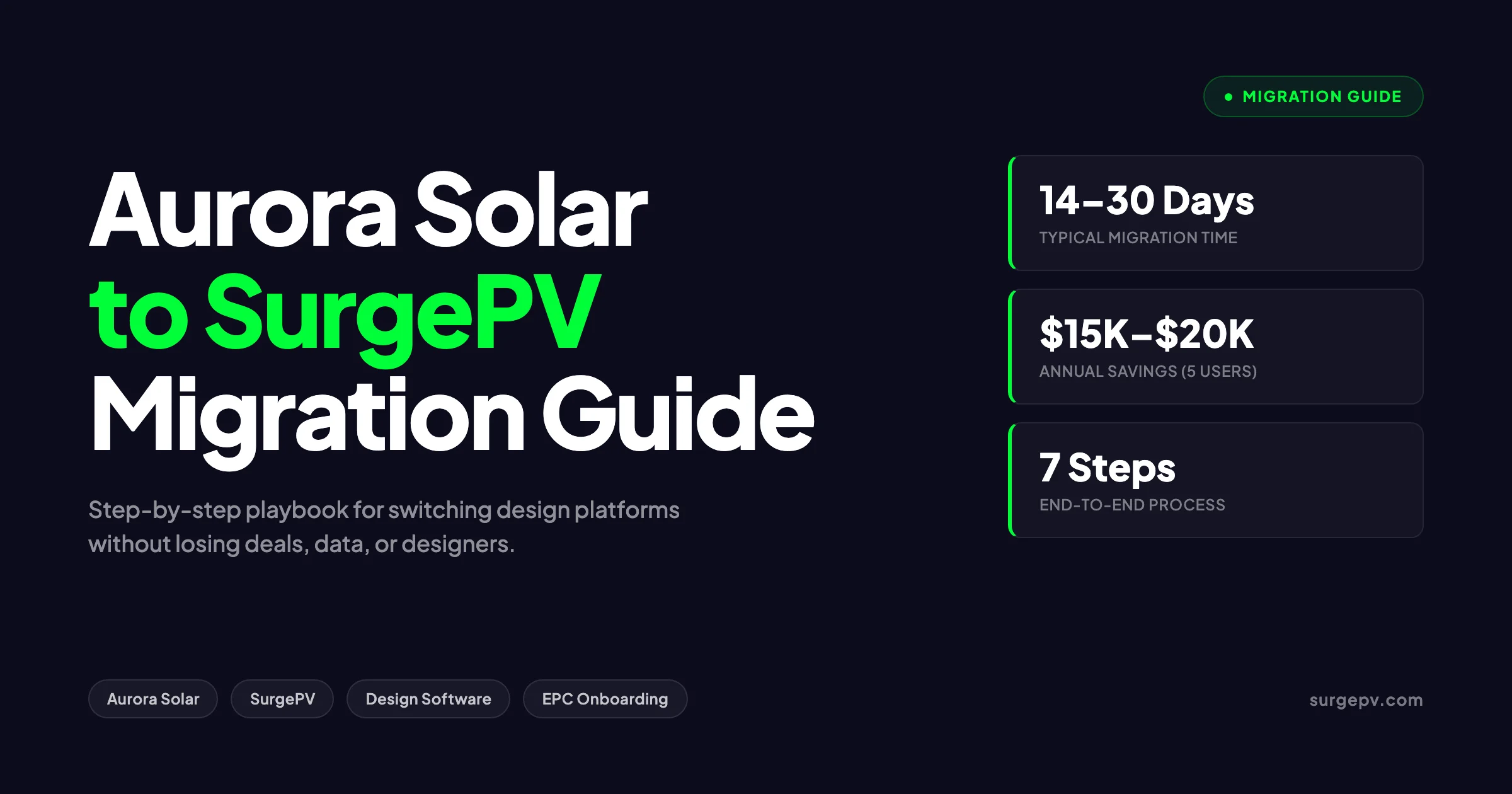
Switching solar design platforms feels risky when you have active proposals, custom templates, and a team trained on the existing tool. This guide walks you through the exact process to migrate Aurora Solar to SurgePV with no lost deals, no broken proposals, and no production data gaps. It covers what to export from Aurora, how to set up SurgePV, how to handle active customers during the transition, and the realistic 30 day timeline for teams of 3 to 10 designers.
Aurora Solar pricing is estimated at $2,640 to $6,000 per user per year, and tier pricing is not published. For a five designer team, that range works out to $13,200 to $30,000 annually. SurgePV starts at $1,499 per user per year with all features included on every plan.
TL;DR — Aurora Solar to SurgePV Migration
Plan 14 to 30 days for a full migration depending on team size. Aurora exports designs as DXF and production data as CSV, but module layouts must be rebuilt. SurgePV provides dedicated migration support including template recreation and team training. A 5 designer team saves $15,000 to $20,000 per year by switching from Aurora plus AutoCAD to SurgePV.
Why Teams Migrate from Aurora Solar in 2026
The decision to switch design platforms rarely comes from one trigger. It builds across several quarters as costs creep, project types shift, or the team hits a wall with what the tool can do.
Aurora Solar pricing is estimated at $2,640 to $6,000 per user per year, and tier pricing is not published. For a five designer team, that range works out to $13,200 to $30,000 annually. Add a single AutoCAD seat at roughly $2,000 per year for permit-ready single line diagrams, and the stack creeps past $32,000 for a small team. SurgePV starts at $1,499 per user per year with all features included on every plan. For a deeper feature breakdown, see the SurgePV Aurora Solar review and the head-to-head Aurora Solar vs SurgePV comparison.
Three usage patterns push teams off Aurora: Also see: Us Residential Solar Market Trends 2026.
- Commercial and carport projects. Aurora was built for US residential and lacks native support for carports, single axis or dual axis trackers, and East-West racking layouts. EPC teams working on parking canopies or ground-mount usually need to drop into AutoCAD for layout, then re-import into Aurora for the proposal — adding 2 to 3 hours per project.
- International expansion. Aurora’s LIDAR coverage and utility rate database are US-centric. Teams in Europe, India, Australia, and Latin America report poor imagery, missing tariff data, and irrelevant code references (NEC 690 instead of IEC 62548 or the local national wiring rules).
- Engineering documentation requirements. Aurora does not generate single line diagrams, three line diagrams, conduit fill calculations, or voltage drop calculations natively. SurgePV bundles all of those into the design workflow. Also see: Best Solar Design Software India. Also see: European Solar Incentives.
If any of these match your situation, the migration math usually clears the bar within the first 6 to 12 months of the switch.
Pro Tip
Before starting the migration, ask each designer to list the 5 things they wish Aurora did better. This list becomes your acceptance test for SurgePV. If SurgePV solves 4 of the 5, the switch is justified. If it solves fewer than 3, evaluate other tools before committing.
Pre-Migration Checklist: What to Export Before You Cancel
Aurora does not offer a bulk project export tool today. You have to extract data project by project, so the prep work matters. Build this checklist before any team member starts clicking through projects.
What to Pull Out of Aurora
| Data Type | Aurora Export Format | Where It Lives in SurgePV |
|---|---|---|
| Site plan / roof geometry | DXF | Imported as design layer base |
| Module layout | Visual reference only (PDF or screenshot) | Rebuilt natively in SurgePV |
| Shading analysis | PDF report | Rebuilt natively (8,760 hour shading) |
| Annual production estimate | CSV (8,760 hourly values) | Used to validate SurgePV simulation |
| Customer consumption data | CSV interval data | Imported into SurgePV simulation |
| Component library (modules / inverters) | Manual list | Added to SurgePV component library |
| Branded proposal template | Rebuilt as SurgePV proposal template | |
| Customer information | Manual export from Aurora CRM or your sales CRM | Imported via CSV |
| Sales pipeline | Pull from Salesforce/HubSpot (not Aurora) | Re-mapped through CRM integration |
The honest answer: every solar design platform claims migration support, but the reality is that module placement, racking definitions, and shading models cannot be transferred between tools because they live in proprietary geometry engines. Aurora’s DXF export gives you the roof outline and panel rectangles, but not the underlying constraints. SurgePV rebuilds the design from the DXF base, which takes 10 to 20 minutes per residential project.
Critical Files to Save Locally
Before you cancel Aurora, download these for every active project:
- The DXF site plan file
- The full proposal PDF
- The customer-facing report PDF (with shade analysis and production estimate)
- The 8,760 hour production CSV
- The single line diagram if you generated one in Aurora’s SLD tool
Store everything in a shared cloud folder structured by Customer Name / Project Status / [files]. The first SurgePV project you run on each customer will reference the original Aurora PDF to verify the proposal numbers match within 2 to 3 percent.
The 7 Step Aurora to SurgePV Migration Process
The migration is sequential. Skipping any step creates rework downstream, usually in the form of a designer redoing a proposal because the component library was not ready.
Step 1: Audit Active Aurora Projects
Pull a full project list from Aurora. Sort by status: Active Proposal, In Design, Closed Won, Closed Lost. Decide on a cutoff:
- Active Proposal: finish in Aurora. Do not move active customer-facing deals mid-flight.
- In Design (no customer commitment yet): rebuild in SurgePV.
- Closed Won (last 12 months): archive the PDFs. No need to migrate.
- Closed Lost or stale: do not migrate.
A team of 5 designers handling 20 active projects each will end up migrating 30 to 50 in-design projects and archiving the rest. Anything older than 12 months stays in cold storage.
Step 2: Set Up the SurgePV Workspace
Sign up at the SurgePV pricing page, invite team members, and assign roles. This takes 30 to 45 minutes.
Configure the workspace before any project work begins:
- Organization name, logo, branded colors, and proposal cover image
- Default currency, time zone, and unit system (metric or imperial)
- User roles: Admin (workspace settings), Designer (design and simulation), Sales (proposal access only)
- Default racking systems and stringing rules
The roles matter for permissions. A sales rep should not be able to delete a project, and a designer should not be able to change global pricing rules.
Step 3: Export Aurora Data Project by Project
Aurora’s DXF export lives in Design Mode. From the Aurora help center, the workflow is: open the project in Design Mode, click the Export button in the upper left, select DXF, choose which layers to include, and download. You can read the official steps in the Aurora DXF export documentation.
For production data, in Design Mode click the Download dropdown and select Production Data. The 8,760 hourly value CSV downloads to your computer. For interval consumption data, the file downloads in 15, 30, or 60 minute intervals depending on what you imported. Aurora documents the full hourly production data export workflow and the interval data download steps in its help center.
Single line diagram templates created in Aurora’s SLD template tool will not transfer. SurgePV regenerates these natively from the design once components and stringing are in place, so the rebuild happens automatically rather than as a manual recreation step. Reference: Aurora’s SLD template documentation.
Step 4: Build Your SurgePV Component Library
A complete component library is the single biggest accelerator for migration. Without it, every project starts from scratch.
Add these to SurgePV before the first design:
- All module SKUs your team uses, with the exact model numbers (not just brand names)
- All inverter SKUs (string, central, microinverter, hybrid) with current data sheets
- Battery SKUs if you sell storage
- Racking systems for each roof type your team works on (tile, asphalt, metal, flat ballast, ground mount, carport)
- Wiring products (combiner boxes, disconnects, conduit types)
Most installers run 8 to 15 module SKUs, 4 to 8 inverter SKUs, and 3 to 5 racking systems. Building the library takes 2 to 4 hours and saves 15 to 30 minutes per project afterwards because designers do not have to pause to add equipment mid-design.
Step 5: Rebuild Your Proposal Template
Open your most recent Aurora proposal PDF and identify the elements that matter:
- Cover page (logo, project address, system size, customer name)
- Executive summary (energy offset, savings, payback)
- System specifications (modules, inverters, layout drawing)
- Production estimate (year 1, year 25, lifetime)
- Financial analysis (cash purchase, loan, lease, PPA)
- Warranty and installation timeline
- Company credentials and case studies
Rebuild each section in SurgePV’s proposal editor. SurgePV uses a section-based template where text, tables, and dynamic project data merge automatically. A standard residential template takes 3 to 4 hours to rebuild from scratch and applies to every future project.
For brands using multiple proposal versions (residential cash, residential financed, commercial), build each as a separate template and tag with the proposal type.
Step 6: Run a Parallel Simulation to Validate Outputs
Pick the 3 most representative recent Aurora projects and rebuild them in SurgePV. Compare the year 1 production estimate side by side:
| Validation Metric | Acceptable Variance |
|---|---|
| Year 1 AC production (kWh) | Within 2 to 3 percent |
| Year 1 specific yield (kWh/kWp) | Within 2 to 3 percent |
| Shading losses (%) | Within 1 to 2 percentage points |
| System DC capacity (kWp) | Exact match (same modules) |
If any metric falls outside the acceptable variance, debug before scaling the rebuild. Common causes: different weather file (TMY3 vs Meteonorm), different module degradation rate, or different mismatch loss assumptions. SurgePV’s PV generation and financial modeling lets you compare the underlying loss assumptions side by side.
For shading analysis, run SurgePV’s solar shadow analysis software on the same site and compare the access percentage to Aurora’s solar access result.
Step 7: Cancel Aurora and Reclaim Budget
Once every active project has either closed in Aurora or been rebuilt in SurgePV, cancel the Aurora subscription. Aurora’s cancellation flow requires contacting your account manager. Time the cancellation to land before the next billing cycle to avoid prorated charges.
Before canceling, do a final download:
- Export all remaining project PDFs to your cloud archive
- Confirm your team has revoked Aurora SSO access
- Cancel the Aurora-AutoCAD subscription tie-in if applicable
For a 5 designer team coming off Aurora plus AutoCAD, the structural change is immediate: two separately licensed products become one subscription from month one onwards.
Get Migration Support from the SurgePV Onboarding Team
Our team handles template recreation, library setup, and parallel validation for every team migrating off Aurora. Most installers finish the switch in 14 to 30 days.
Book a DemoNo commitment required · 20 minutes · Live project walkthrough
How to Export Project Data from Aurora Solar
The Aurora export workflow is documented but scattered across multiple help center pages. This section consolidates everything in one place.
Exporting DXF Site Plans
DXF is the only design geometry format Aurora exports. It encodes 2D and 3D site geometry — roof outlines, panel placements, obstructions, and setback lines. Aurora does not export native DWG.
The export button is only available in Design Mode. From the Aurora help center: open the project, switch to Design Mode, click Export in the upper left of the screen, select DXF, choose your layers, and download.
You can pick which layers to include in the DXF export. Common layer selections:
- Roof outline
- Panel layout
- Obstructions (vents, chimneys, skylights)
- Setbacks and keep-out zones
- Stringing diagram (if needed for permit)
Tip: include all available layers in the export. You can hide layers in AutoCAD or in SurgePV’s CAD export workflow afterwards. Re-exporting is more painful than turning off layers.
Exporting Production Data (8,760 Hourly Values)
In Aurora’s Design Mode, click the Download dropdown and select Production Data. A CSV downloads with 8,760 hourly AC production values. Use this CSV to validate SurgePV’s simulation output during the rebuild phase.
The columns are typically: Hour of year, DC power (kW), AC power (kW), ambient temperature (C), and POA irradiance (W/m²). Some Aurora exports include cell temperature and module efficiency at the time of generation.
Exporting Consumption Interval Data
Aurora supports 15, 30, or 60 minute interval consumption data uploaded from utility CSV files. To re-export: open the project, navigate to the consumption data view, and download the CSV. This is critical for sites where you used Genability or UtilityAPI integration to pull granular load data.
SurgePV imports interval CSV files directly. The system handles 15, 30, and 60 minute intervals and uses the load data to model self-consumption and battery dispatch.
Exporting Proposal PDFs
Aurora proposals export as multi-page PDFs. Open the project, navigate to the proposal section, and click Download or Email. The PDF includes the system specs, production estimate, financial analysis, and customer-facing cover content.
There is no Word, HTML, or rich-text export. If you need to extract the proposal copy for the rebuild, copy and paste from the PDF — or better, refer back to your original brand copy that you used to set up Aurora’s template in the first place.
State-by-State and Country-by-Country Migration Notes
Migration logistics vary by market. The tools change, but the goal stays the same: minimal disruption, no lost data, no missed permits.
United States
US installers usually run Aurora plus AutoCAD because Aurora does not generate single line diagrams. The SurgePV migration eliminates the AutoCAD seat, since SurgePV produces stamped-ready SLDs natively. The migration also typically retires:
- A separate proposal tool (e.g., Solo or Energy Toolbase) if used
- A separate stringing calculator
- A separate conduit fill spreadsheet
Compliance with NEC 690 and NEC 705 happens inside SurgePV’s design environment. For NEC-specific guidance, see the NEC 2026 solar changes guide.
Canada
Canadian installers often hit a wall on Aurora because the platform’s tariff data is US-focused and CSA Z462 / CSA C22.1 references are not native. SurgePV supports Canadian utility rates and includes provincial racking and snow load presets. For Canada-specific compliance details, see Canada comparisons/solar-designing.
European Union
EU installers running Aurora often work around the platform’s gaps with Excel and PVsyst. The migration to SurgePV typically retires PVsyst as the primary simulation tool because SurgePV uses Meteonorm and PVGIS weather files natively and supports IEC 62548 stringing rules.
For Germany-specific workflows, see solar proposal software Germany. For UK installers, the UK solar design software guide covers MCS compliance. Also see: Germany solar subsidies.
India and Southeast Asia
Aurora has limited coverage in India and Southeast Asia. Imagery quality drops sharply outside major US metros. SurgePV is widely used in India through Heaven Green Energy Limited and supports BIS and IEC standards natively. For Indian commercial projects, the advanced solar PV design software guide covers the migration nuances. For India-specific information, see 5kW Solar Panel Price in India.
Australia and New Zealand
Australian installers often migrate to escape Aurora’s US-centric inverter database. SurgePV includes Clean Energy Council (CEC) approved modules and inverters and supports the AS/NZS 5033 wiring rules. For Australia-specific compliance details, see Australia comparisons/lgc-vs-stc.
Cost Comparison: Aurora + AutoCAD vs SurgePV
This is where most migration ROI cases get made. The math is straightforward when you add up the full stack.
1 to 2 Designer Team (Small Installer)
| Item | Aurora Stack | SurgePV |
|---|---|---|
| Design software (2 users) | $5,280 to $12,000 / year | $2,998 / year |
| AutoCAD (1 seat for SLDs) | Licensed separately | Included |
| Proposal tool add-on | $1,200 / year (optional) | Included |
| Total | $8,480 to $15,200 / year | $2,998 / year |
| Annual savings | — | $5,482 to $12,202 |
5 Designer Team (Mid-Size EPC)
| Item | Aurora Stack | SurgePV |
|---|---|---|
| Design software (5 users) | $13,200 to $30,000 / year | $7,495 / year |
| AutoCAD (2 seats) | Licensed separately | Included |
| Proposal / CRM add-on | $3,000 / year | Included |
| Total | $20,200 to $37,000 / year | $7,495 / year |
| Annual savings | — | $12,705 to $29,505 |
10 Designer Team (Large EPC)
| Item | Aurora Stack | SurgePV |
|---|---|---|
| Design software (10 users) | $26,400 to $60,000 / year | $14,990 / year |
| AutoCAD (4 seats) | Licensed separately | Included |
| Custom integrations / API | $5,000 to $10,000 / year | Included |
| Total | $39,400 to $78,000 / year | $14,990 / year |
| Annual savings | — | $24,410 to $63,010 |
The savings compound beyond the software cost. Most EPCs report 30 to 45 minutes saved per project on SLD generation alone because SurgePV produces the diagram directly from the design without a manual AutoCAD round-trip. For a team doing 200 projects per year, that is roughly 100 to 150 hours of engineering time recovered.
Common Migration Pitfalls and How to Avoid Them
Migration projects fail in predictable ways. Five patterns account for most of the failures.
Pitfall 1: Skipping the Parallel Validation
Teams that skip the parallel simulation comparison sometimes find production estimates differing by 5 to 10 percent later — usually because of a different weather file or a different mismatch loss assumption. Fix: run the parallel simulation on 3 reference projects before scaling. For the latest details on France, see Agricultural Solar Case Study. For the latest details on France, see Floating Solar Farms France.
Pitfall 2: Migrating Active Customer Proposals Mid-Flight
Moving a deal that is already in front of the customer to a new platform creates confusion. The customer sees a different proposal layout, different numbers, and different branding. They lose confidence. Fix: finish active proposals in Aurora, start new leads in SurgePV.
Pitfall 3: Building the Component Library Lazily
Teams that add modules and inverters “as needed” during projects end up with inconsistent products. Some designers add module X with a 25 year warranty, others add module X with a 30 year warranty. Fix: build the full component library before any production design work begins.
Pitfall 4: Underestimating Designer Training Time
Sales reps adapt to SurgePV in 2 to 4 hours. Designers need 6 to 10 hours plus a week of supervised design work. Teams that schedule only sales training and assume designers will figure it out lose 1 to 2 weeks of productive design output. Fix: schedule a half-day designer workshop and assign every designer to shadow 2 to 3 projects done by an experienced user.
Pitfall 5: Canceling Aurora Too Early
Teams that cancel Aurora before completing all active proposals lose access to the original project files. If a customer comes back 30 days later with a question, the team has nothing to reference. Fix: keep Aurora active for the full duration of every in-flight proposal plus a 30 day buffer.
Team Onboarding Timeline
Realistic timelines based on team size. These assume one project per week per designer during the rebuild phase.
| Team Size | Migration Duration | Key Activities |
|---|---|---|
| 1 designer (solo installer) | 5 to 7 days | Workspace setup, library build, 3 rebuilt projects |
| 2 to 3 designers (boutique) | 10 to 14 days | Add proposal template workshop + parallel simulation |
| 4 to 7 designers (mid-size EPC) | 14 to 21 days | Add designated migration manager + CRM integration |
| 8 to 15 designers (large EPC) | 21 to 30 days | Add multi-region workspaces + role-based permissions |
| 15+ designers (enterprise) | 30 to 45 days | Add API integrations, custom reporting, multi-tier approval |
The bottleneck for teams of 4 or more is almost always the proposal template rebuild plus the parallel simulation validation, not the workspace setup.
Week-by-Week Plan (5 Designer Team)
Week 1: Workspace setup, user roles, component library, brand assets. Train one designer as the internal SurgePV champion. Build the proposal template draft.
Week 2: Parallel simulation on 3 reference projects. Validate energy yield outputs. Lock the proposal template. Train the rest of the designer team in a half-day workshop. Schedule the sales team training.
Week 3: Start new leads in SurgePV. Designers split time between rebuilding in-design Aurora projects and running new SurgePV projects. Run a daily 15 minute standup to triage issues.
Week 4: All new projects originate in SurgePV. Continue rebuilding active in-design Aurora projects. Begin closing out Aurora data exports. Plan the Aurora cancellation date for the next billing cycle.
SurgePV Features That Replace Aurora Pain Points
The migration only pays off if the new tool actually solves the problems that pushed the team off Aurora. Here is how SurgePV maps onto the common Aurora gaps.
Native Single Line Diagrams
SurgePV generates single line diagrams directly from the design within 5 to 10 minutes. No AutoCAD round trip, no manual drafting. The output is stamped-ready and meets NEC 690.15 and similar international standards. For background on what an SLD includes, see electrical SLD.
Native Carport, Tracker, and East-West Racking
SurgePV supports parking canopy layouts, single and dual axis trackers, and East-West racking natively. For carport-specific design guidance, refer to existing SurgePV resources during your onboarding session. Read Commercial Solar Carport Design Guide for a complete walkthrough.
Bankable Simulation (P50 / P75 / P90)
SurgePV produces P50, P75, and P90 production estimates required for commercial debt financing. Aurora only outputs P50. For a deeper look at bankable simulation requirements, the bankable simulation breakdown covers the standard.
Auto Stringing and BOM Generation
SurgePV auto-generates string layouts based on the design, then produces a bill of materials ready for procurement. The auto stringing feature reduces stringing layout time from 30 minutes to under 5 minutes per project.
Integrated Financial Modeling
The solar financial modeling calculates NPV, IRR, payback, and lifetime savings from the same project file used for design. No round-trip to a separate financial spreadsheet.
Clara AI for Proposal Assistance
Clara AI is the SurgePV AI assistant that drafts proposal copy, summarizes customer benefits, and answers sales rep questions in real time. The Aurora equivalent is not bundled in standard tiers.
What to Tell Your Customers During Migration
Communication during a tool switch matters more than people think. Customers who see the same logo on a different-looking proposal sometimes pause to ask whether they are dealing with the same company.
Three short rules:
- Active proposals stay in the original tool. Do not switch a customer mid-flight. Wait until the current proposal closes or expires.
- New customers get the SurgePV branded proposal from day one. Train the sales team to skip any reference to a “new tool” — to the customer, the SurgePV proposal is just your proposal.
- Send the same email cadence as before. The proposal follow-up sequence, payment confirmation emails, and post-install reports should look identical to what your customer received pre-migration.
If you generate an electronic signature inside SurgePV, the customer sees the same e-signature provider (DocuSign, Adobe Sign) they used before. No new account setup is required from the customer.
Migration Support: What SurgePV’s Onboarding Team Handles
Most installers underestimate how much hands-on help is available during the migration. The SurgePV onboarding team typically covers:
- Workspace setup walkthrough (live session, 60 minutes)
- Component library build assistance (1 to 2 hours over Zoom)
- Proposal template recreation (the team rebuilds your template from your Aurora PDF)
- Parallel simulation validation on your first 3 reference projects
- Sales team training (2 hour live session, recorded for replay)
- Designer training (4 hour live session, recorded for replay)
- Dedicated migration manager for the first 30 days
- Slack / WhatsApp channel access for real-time questions
The combination of PV design software features plus hands-on onboarding usually saves 40 to 60 hours of internal team time compared to a self-served migration. For teams with limited bandwidth, this is the difference between a 30 day migration and a 60 day migration.
Conclusion
A clean Aurora to SurgePV migration follows a predictable pattern. The teams that finish in 14 to 30 days share three things: they plan the project cutoff carefully, they build the component library before doing any production design work, and they run a parallel simulation to validate outputs.
Action items to start this week:
- Pull a full Aurora project list and classify projects as
finish in Aurora,rebuild in SurgePV, orarchive. - Book a SurgePV onboarding call and confirm the migration timeline that fits your team size.
- Identify one team member who will own the migration end-to-end and make them the internal SurgePV champion for the first 60 days.
SurgePV’s solar proposal software and integrated design tools handle the technical side. The team-side work — proposal template recreation, parallel validation, customer communication — is what separates a 14 day migration from a 60 day one. Plan that work explicitly before any export from Aurora.
Frequently Asked Questions
Can you import Aurora Solar projects directly into SurgePV?
No solar design platform supports a direct bulk import of Aurora project files today. SurgePV does support DXF imports for site plans and CSV imports for production data, but module layouts and shading models must be rebuilt. The SurgePV onboarding team handles template recreation and recreates active proposals as part of standard migration support.
How long does a full migration from Aurora Solar to SurgePV take?
A solo installer can complete the migration in 5 to 7 days. A team of 3 to 5 designers typically needs 14 to 21 days. EPCs with 50 or more active projects and custom Salesforce integrations plan for 30 to 45 days. The bottleneck is rebuilding component libraries and active proposals, not technical setup.
What data can I export from Aurora Solar before canceling?
Aurora supports DXF export for design geometry, CSV export for 8,760 hour production data, PDF export for finished proposals, and CSV export for interval consumption data. Aurora does not offer a bulk project export tool, so most teams export project-by-project. API access is required for automated extraction and is restricted to the Enterprise tier.
Does SurgePV cost less than Aurora Solar?
SurgePV pricing starts at $1,499 per user per year with all features included, compared to Aurora’s estimated $2,640 to $6,000 per user per year. A 5 designer team typically saves $15,000 to $20,000 annually by switching off Aurora plus AutoCAD because SurgePV includes native single line diagrams, wire sizing, and conduit calculations without a separate CAD seat. See Solar Cable Sizing Calculation for detailed guidance.
What happens to in flight customer proposals during migration?
Keep Aurora active for any proposal that is already in front of a customer. Finish those deals in Aurora, then rebuild the templates inside SurgePV. New leads coming in during the migration window go directly into SurgePV. This dual run typically lasts 4 to 6 weeks and prevents lost deals.
Do I need to retrain my entire sales team after migrating?
Sales reps typically need 2 to 4 hours of training because SurgePV proposal flows are similar to Aurora. Designers need 6 to 10 hours because component libraries, stringing logic, and SLD generation work differently. SurgePV provides recorded video walkthroughs, live onboarding sessions, and a dedicated migration manager during the first 30 days.
Can I run Aurora and SurgePV in parallel during the migration?
Yes. Most teams run both platforms for 30 to 45 days. New projects start in SurgePV from day one, while existing Aurora projects finish out their current lifecycle. This parallel run protects revenue and gives the team time to verify outputs against Aurora before fully cutting over.
Will my CRM integrations work after switching to SurgePV?
SurgePV connects to Salesforce, HubSpot, Zoho, and other CRMs through native integrations and webhooks. Existing Aurora to CRM mappings must be reconfigured because the field names and data structures differ. Plan 4 to 8 hours of integration work for a typical Salesforce setup with 10 to 15 mapped fields.
Where this fits
This article is part of SurgePV's Solar Design hub, which works through the topic from first principles to the decisions a project team actually has to make.